

To streamline your experience, we have automated the Continuing Education (CE) process. Now, when a credit is created, a certificate is simultaneously sent to the member via email.
There are currently two primary methods to issue CE credits and certificates to members:
- Members can submit the event completion code via their app by navigating to ‘Manage CE‘ > ‘Submit Completion Code.’
- Admins can mark members as ‘Attended’ on the ‘Manage Attendees‘ page of the admin portal. Please note, this method requires members to have registered for the event via the app.
Before proceeding with these methods, let’s ensure your completion code is correctly set and ready to use.
Finding and Updating Your Completion Codes
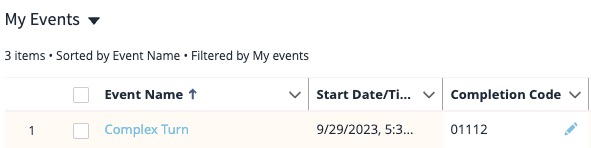
You can find the completion code for your events on the ‘Manage Events‘ page in the Admin Portal. This is the code you’ll provide to members which they can enter to obtain their CE credit.
AGD Providers
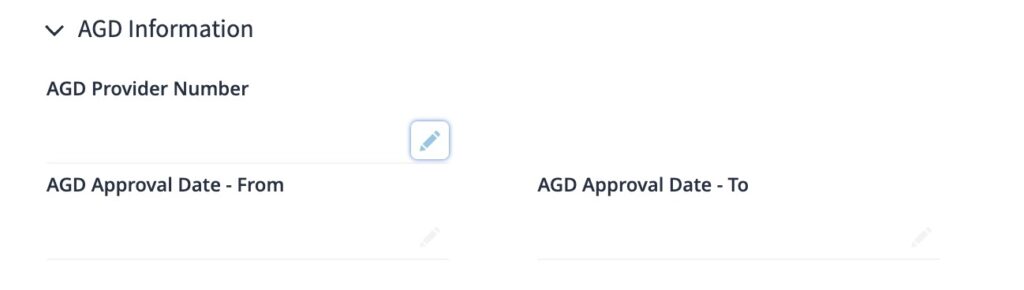
If your club is an AGD provider, you’ll need to update your provider details in the Admin Portal. This ensures that your AGD details and the AGD logo are present on the CE certificates.
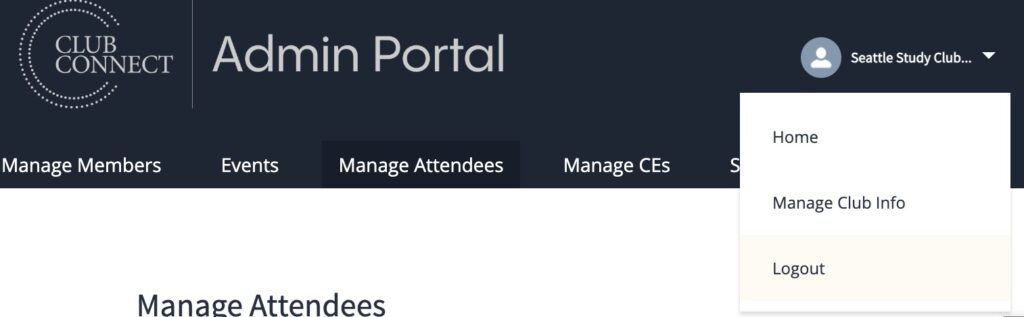
Click the profile icon in the top right of the screen and select ‘Manage Club Info’ from the dropdown.
Click the edit button in the top right of the screen or the pencil icon next to your AGD details and save.
Issuing CE
Method 1: Member Submits Completion Code in App
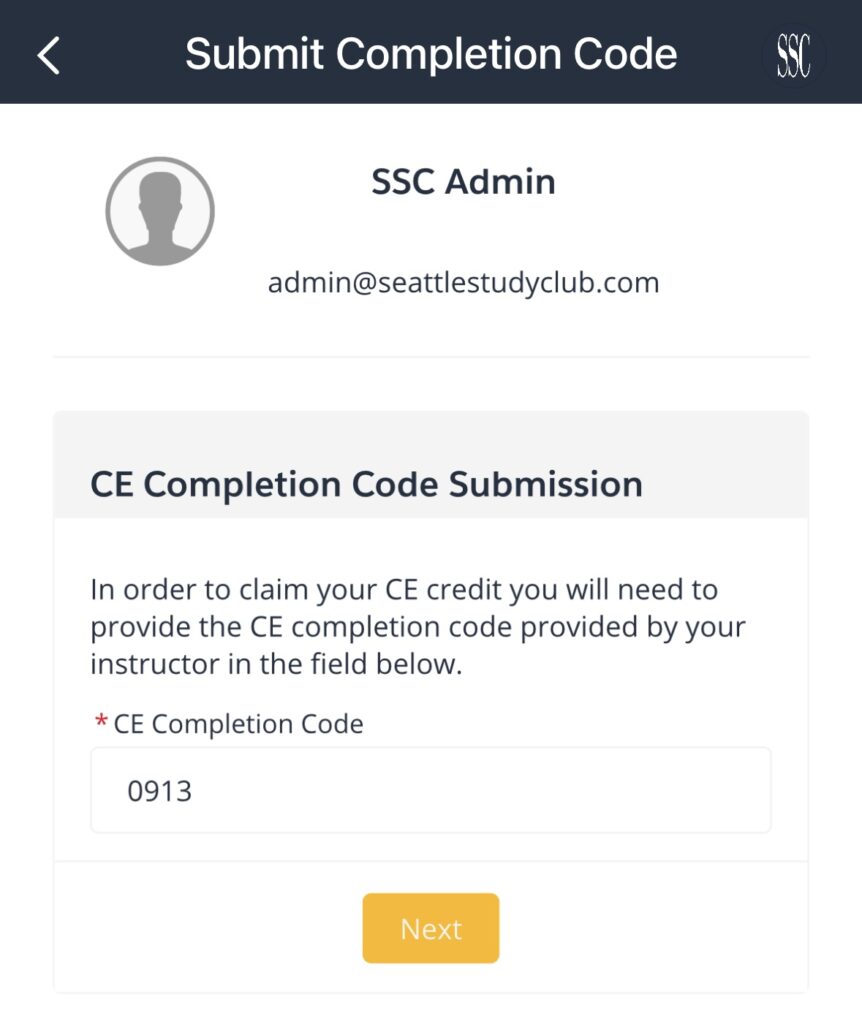
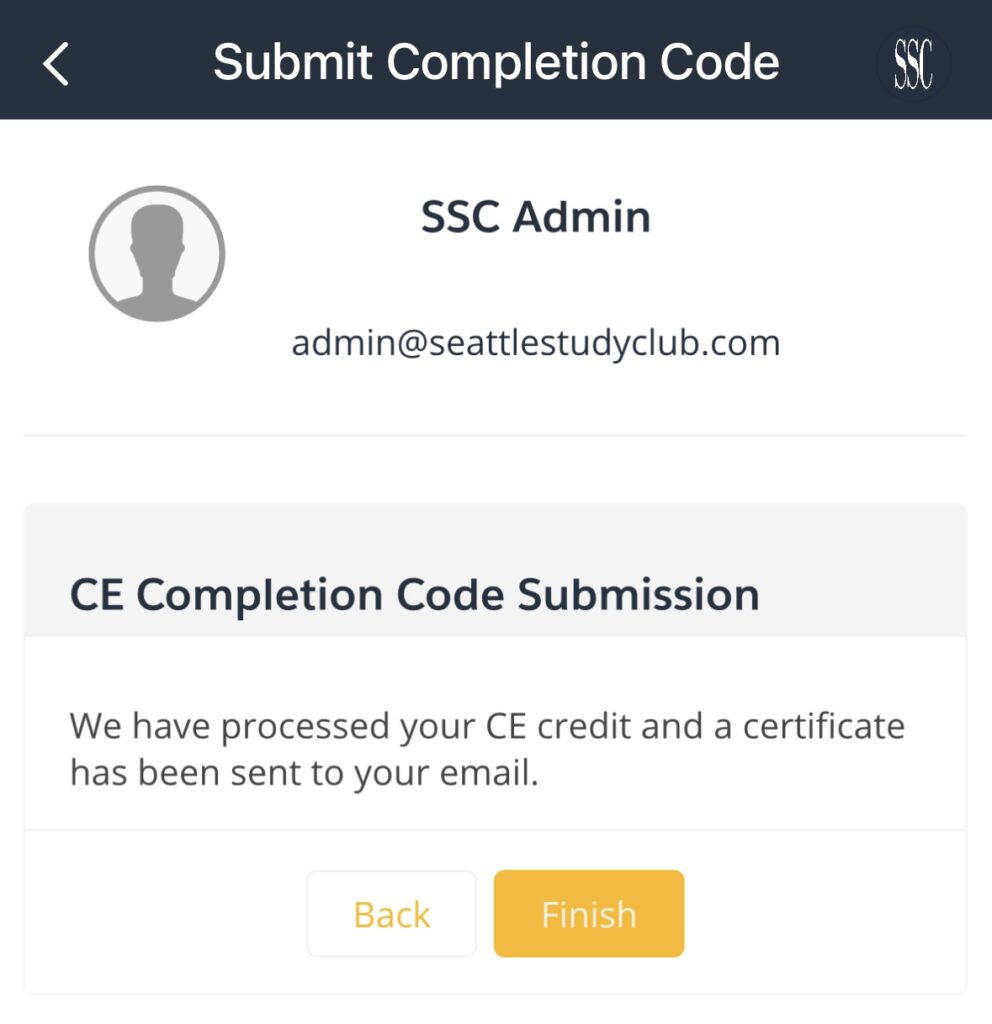
Kindly direct participants to login to the app. They should then navigate to ‘Manage CE‘ > ‘Submit Completion Code.’ If the code is accurate, they will receive a success message and an automated email will be dispatched with a CE certificate attached.
If a CE credit has already been issues, the system will indicate that an refrain from issuing another credit.
If the completion code is incorrect, the system will not allow them to move forward.
Step 1: Enter Code
Step 2: Success
Method 2: Marking Members as Attended
Admins can mark members as ‘Attended’ on the ‘Manage Attendees‘ page of the admin portal. Please note, this method requires members to have registered for the event via the app.
This method also triggers the automated CE certificate to your members via email.

Viewing CE Credits
All issued CE credits, certificates and evaluations are available to review in the Admin Portal.
View All Credits
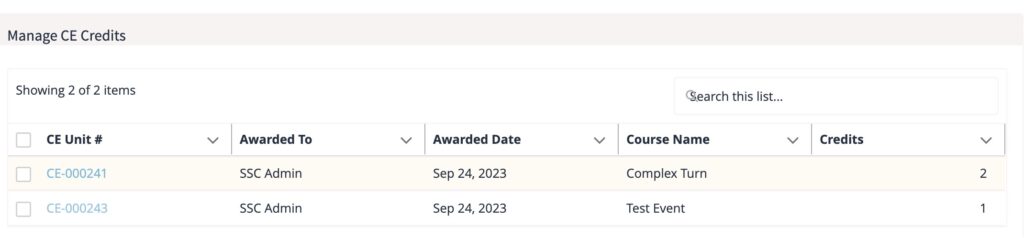
Visit the Manage CE page in the Admin Portal to view all CE credits issued to your members. Click the corresponding ‘CE Unit Number‘ record hyperlink for the record you want to view.
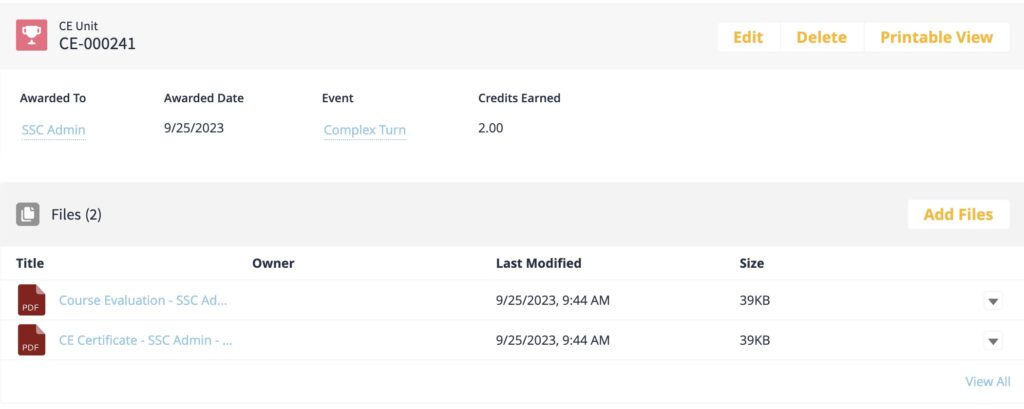
This opens a new page with the CE credit details along with the attached files. Click the file name to open the attached PDF to view and/or download
View Credits by Event
On the Events page in the Admin Portal, click the event name of the event’s records you want to view. Scroll down to find a section titled ‘CE Units.’ This will contain all of the active CE records associated with this event.
Click the corresponding ‘CE Unit Number‘ record hyperlink for the record you want to view. This page also opens the same record page to view files.
