

Directors and Coordinators can generate a PDF version of their club roster directly from Club Connect. Follow the steps below to download and save a copy to your computer.
Step 1: Log In to Club Connect
Log in to Club Connect using your shared admin login credentials.
👉 https://portal.myseattlestudyclub.com/s/
Step 2: Navigate to Your Club Roster
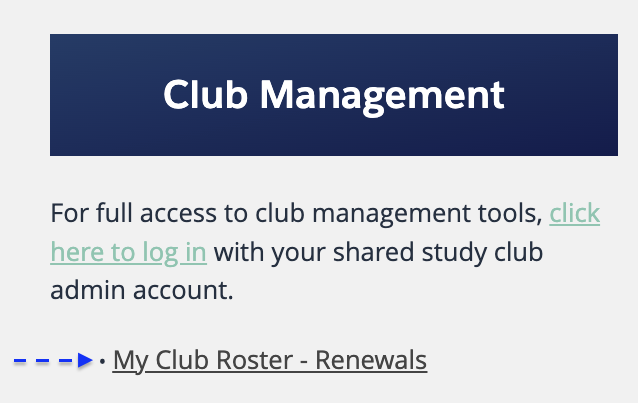
Once logged in, navigate to the Club Management section and select My Club Roster – Renewals.
Step 3: Select the Download Roster Tab
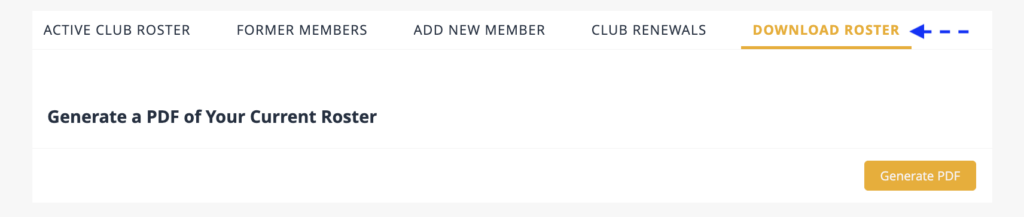
Within the roster page, select the Download Roster tab.
Step 4: Generate the PDF
Click the Generate PDF (yellow) button to begin creating your roster PDF.
Step 5: Confirm and Finish
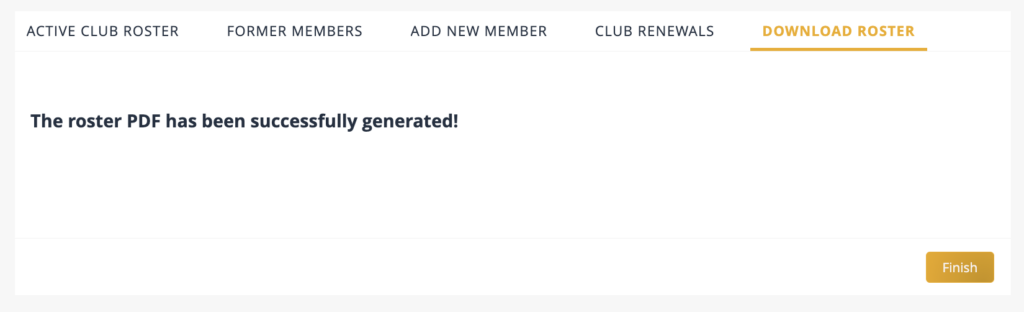
When you see the message “The roster PDF has been successfully generated!”, select Finish to complete the process.
Step 6: Save the File
The PDF will automatically download to your computer. Be sure to select and remember the folder where you save the file for easy access later.
Need Help?
If you experience any issues or need assistance, please contact our support team at support@seattlestudyclub.com.